Animation Retargeting
Stop animating from scratch. Take any animation. Put it on any character. Done.
What is Retargeting?
Animating a character from scratch is slow, tedious, and — let's be honest — a terrible use of your time when thousands of great animations already exist. The problem? Those animations were made for a different skeleton. Different bone names, different axis orientations, different proportions. In professional studios, fixing this is a multi-hour ordeal involving Blender, manual bone mapping, and a lot of staring at quaternion matrices.
Retargeting takes an animation from one skeleton and maps it onto a completely different one. Black Box Animator does this automatically. It detects the source platform, maps bones using standardized IDs, handles coordinate space differences, resolves pose mismatches, and transfers the motion cleanly onto your character.
What used to require Blender expertise and hours of manual bone mapping now takes about 10 seconds.
Supported Animation Sources
Bring your animations from wherever you found them. We handle the translation.
Mixamo FBX Mixamo
The most popular free animation library on the planet — thousands of clips (walking, fighting, dancing, idle breathing). Two flavours, both supported:
- Animation-only FBX — download the clip without a character. Fastest. Drop it onto whatever model you've already loaded.
- Character + animation FBX — download with a Mixamo character (Y Bot, X Bot, etc.) and use it either as a source or as your animated target.
No conversion step. No Blender detour.
BVH Motion Capture BVH
The CMU Motion Capture Database has 2,500+ clips of real human movement. Plus any BVH from MotionBuilder exports or the Second Life / OpenSim communities. Raw mocap data, cleaned up and retargeted automatically — CMU and MotionBuilder bone naming both supported.
GLB / GLTF GLB
Any GLB or GLTF file with embedded animation clips. If the file has bones and keyframes, we extract and retarget them. Includes Meshy and TripoAI models that ship with idle clips built in.
VRM Models VRM
VRM exports from VRoid Studio with animations baked in. Load the VRM and any embedded clips show up in the Animations list, ready to retarget onto any other character.
Supported Target Models
Your character can come from pretty much anywhere. The retarget engine uses fuzzy bone matching and platform-specific naming patterns to figure out what goes where.
| Platform | Format | Pose Support | Notes |
|---|---|---|---|
| VRM VRoid Studio / RPM | .vrm | T-pose | Full finger and facial support |
| Meshy Meshy3D | .glb, .fbx | T-pose & A-pose | Auto-detects pose type |
| TripoAI TripoAI | .glb, .fbx | T-pose | Auto-configured on load |
| CC Character Creator 3 | .glb, .fbx | T-pose & A-pose | iClone naming conventions supported |
| RPM Ready Player Me | .glb | T-pose | Mixamo-compatible naming |
| Mixamo Mixamo character | .fbx, .glb | T-pose | Y Bot, X Bot, etc. used as the target rig |
| GLB SL / OpenSim avatars | .glb (Blender-converted) | T-pose, Z-up | Ruth2 / Roth2 with the mPelvis Bento spine chain — auto-detected |
| GLB Any Rigged GLB | .glb, .gltf, .fbx | T-pose | Fuzzy bone matching — best effort |
If your model comes from a platform we haven't explicitly listed, try it anyway. The fuzzy
bone matcher is surprisingly good at figuring out non-standard naming. If it has a
Hips bone and a reasonable hierarchy, odds are it'll work.
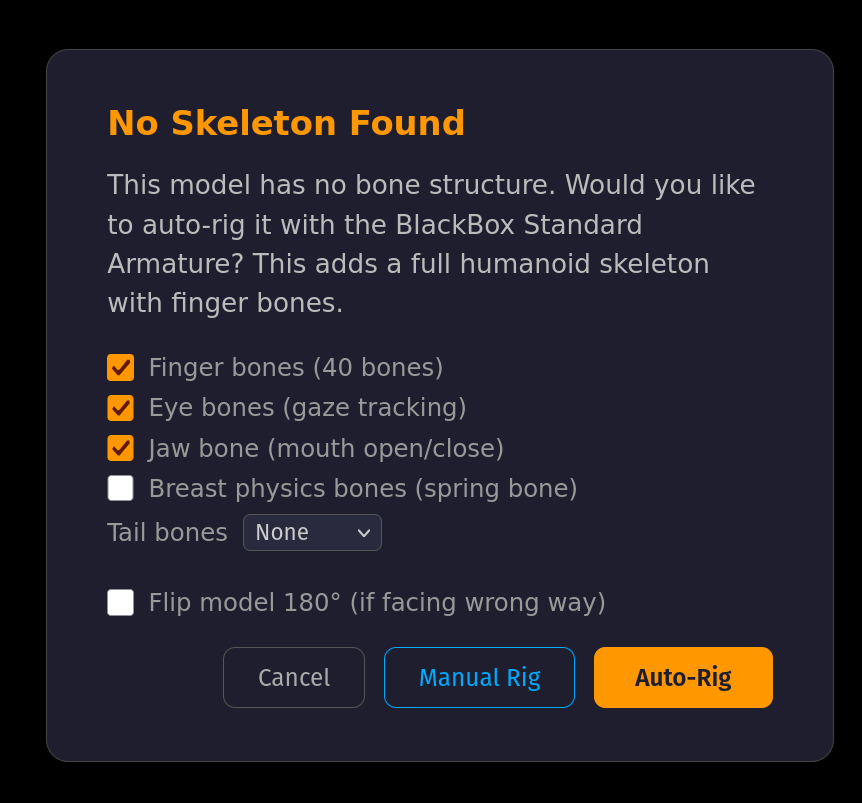
Some TripoAI exports — and any other mesh that arrives without a skeleton — can't be retargeted directly. They have no bones to map onto. Load one anyway and the Animator intercepts it with the No Skeleton Found dialog and offers to attach a full BlackBox Standard Armature in one click.
How to Retarget
Six steps. No PhD required. (Although we have one, and we promise you don't need it for this.)
- Load your target character This is the model you want to animate. Click Load Model and pick your GLB, VRM, FBX, or GLTF file. Your character appears in the viewport.
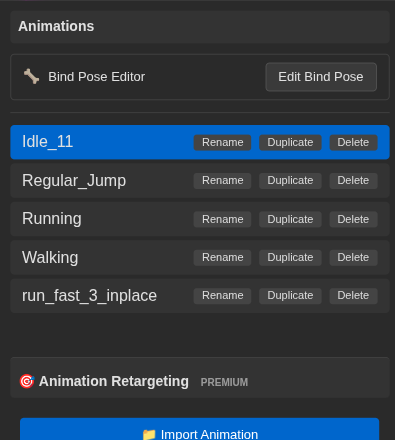
- Click "Import Animation" in the left panel You'll find it in the sidebar under the animation section. It's hard to miss — we made it obvious on purpose.
- Select a Mixamo FBX, BVH, or GLB file Pick your animation source file. The retarget engine immediately identifies the source platform and starts mapping bones.
- Review the bone mapping preview A preview shows you which bones mapped successfully. Green means fully mapped. Yellow means partial — some bones didn't have a match but the core skeleton is fine.
- Click Apply The animation transfers to your character. That's it. The heavy lifting — quaternion conjugation, coordinate space transforms, pose normalization — happens behind the scenes.
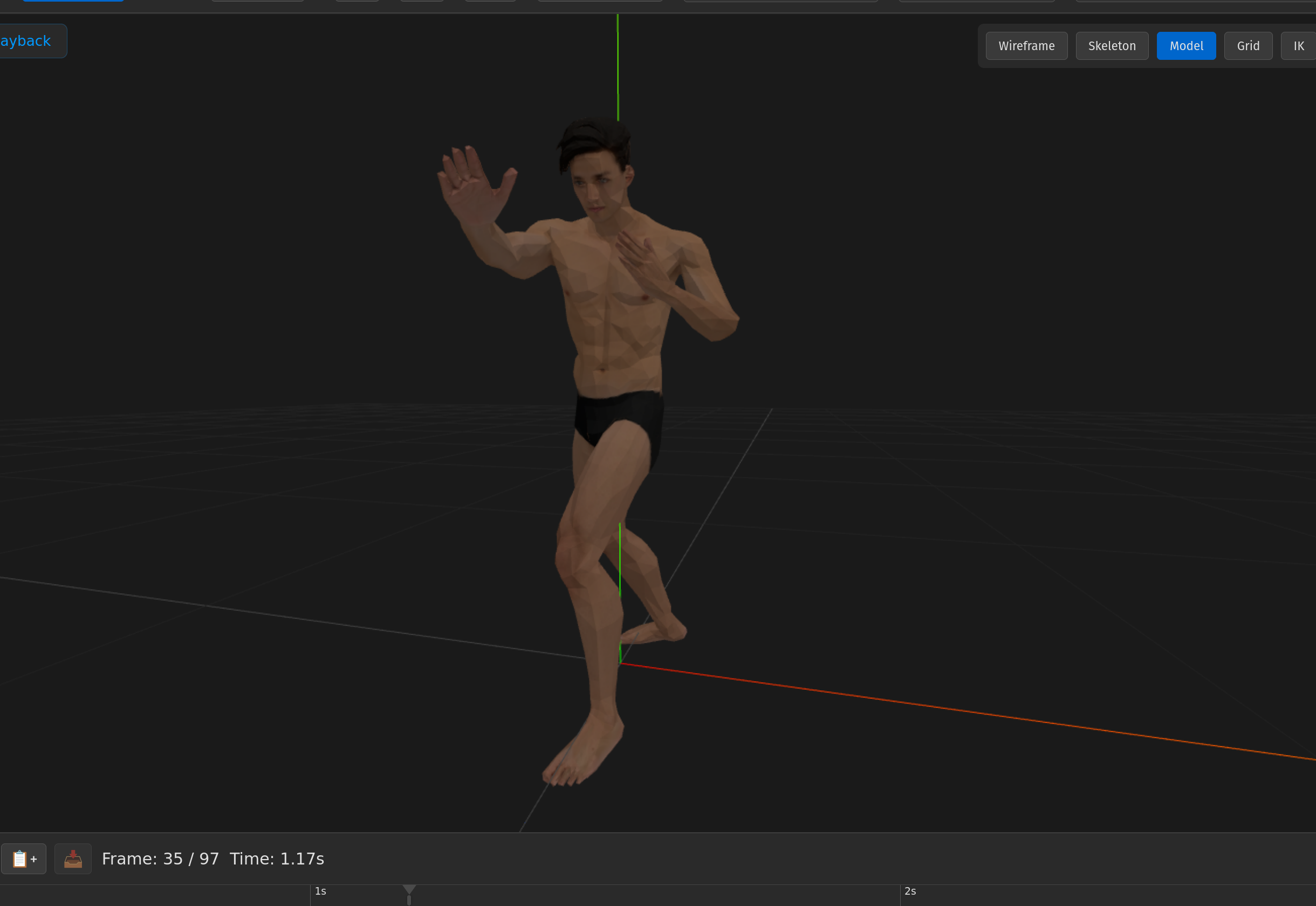
- Hit Play to see it in action Press Space or click the play button in the timeline. Watch your character move. Tweak if needed. Export when ready.
Batch Retargeting
Got a whole folder of Mixamo animations you want on your character? Don't import them one at a time like some kind of caveman.
Use the Bulk Import button. Load multiple animation files at once, and the retarget engine maps them all onto your character in a single pass. Same bone mapping, applied across every clip. Walk, run, jump, idle, dance — all transferred in one go.
Download a batch of Mixamo animations for the same character type (e.g., all "Y Bot" animations). They'll share the same skeleton, which means the bone mapping only needs to be computed once. Maximum efficiency.
How It Works (Under the Hood)
You don't need to know any of this to use retargeting. But if you're the kind of person who likes to understand why things work, here's what's happening when you click that button.
Platform Detection
The BoneMapper module examines the source skeleton and identifies the platform.
Mixamo uses names like mixamorig:LeftUpLeg. VRM uses standardized bone IDs.
Meshy and TripoAI have their own conventions. The mapper recognizes these patterns and
selects the appropriate mapping table.
Bone Mapping
A set of standardized bone IDs — hips, spine,
leftUpperArm, rightFoot, etc. — acts as a bridge between
naming conventions. Source bone names are mapped to standard IDs, then standard IDs are
mapped to target bone names. This two-step approach means adding a new platform is just
a new mapping table, not a rewrite.
Rotation Transfer
This is where it gets gnarly. Different rigs orient their bones along different axes.
A Mixamo arm might point along X while a VRM arm points along negative-X with a Y-up
twist. The engine uses world-space quaternion conjugation
(R¹ × δ × R) to transfer rotations while respecting
each rig's coordinate conventions.
Pose Normalization
T-pose and A-pose are not the same thing. In a T-pose, the arms are straight out to the sides. In an A-pose, they're angled about 30 degrees down. If your source is T-pose and your target is A-pose (or vice versa), the engine detects this and compensates automatically using direction-gated world-space transforms.
The retarget engine handles the coordinate space nightmares that make manual retargeting so painful — anti-parallel quaternions for legs, direction-gated transforms for arms, and bind pose reconstruction from bone inverse matrices. You just click a button.
Troubleshooting
Retargeting is complex under the hood, and occasionally things look a little off. Here are the most common issues and how to fix them.
Arms look wrong
Usually a T-pose vs A-pose mismatch. The engine handles this automatically in most cases, but if the arms look twisted or angled incorrectly, try clicking the Force T-Pose button on your target model before importing the animation. This resets the bind pose to a clean T-pose so the retarget math has a consistent starting point.
Fingers don't animate
The source animation needs finger bone data. Most Mixamo animations don't include finger keyframes — the hands just stay in a default pose. This isn't a retargeting failure; the data simply isn't there. Try a different source animation that includes hand detail, or use Forward Kinematics to pose the fingers manually after retargeting.
Animation is too fast or too slow
Frame rate mismatch between the source animation and the target's expected playback rate. BVH files commonly run at 120 FPS while your scene might expect 30 or 60. This will be addressed in a future update with automatic frame rate normalization. For now, you can adjust playback speed in the timeline controls.
Model disappears after import
This can happen with scale mismatches — the animation teleports the model far from the origin. Click anywhere in the viewport to re-center the camera, or press F to frame the model. If the model is still missing, check the console for import errors.
If you're retargeting onto a model with a non-standard bone hierarchy (bones out of order, missing spine segments, extra root transforms), the mapper will do its best but results may vary. Models from Meshy3D, VRoid, TripoAI, and Ready Player Me are all tested and known to work well.
What's Next
You've got an animation on your character. Now what?
Forward Kinematics
Retargeted animation is a great starting point. Use FK to hand-tweak individual bone rotations and refine the motion until it's exactly right.
Learn FK →Export & Pipelines
Ship your animated character as an optimized GLB. Export for Blender, for poqpoq World, or for any engine that reads GLTF.
Export options →Keyboard Shortcuts
Every hotkey at a glance. Speed up your workflow once you've got the basics down.
View shortcuts →