

🎯 TL;DR - What You’ll Learn
**In 30 minutes, you’ll know how to: **
- Get Admin access to Adobe Learning Manager’s API (become the “principal”)
- Understand what those confusing “Applications” really are (spoiler: just keys!)
- Get and refresh access tokens that last 7 days
- Make your first API calls to list users and courses
- Build a simple dashboard that actually works
What we discovered: Adobe Learning Manager tokens last way longer than documented, refresh tokens can run forever if used regularly, and “client credentials flow” doesn’t seem to exist. Download working code: Python and JavaScript examples included at the end!
Remember in school when only the principal could do certain things? Open the trophy case. Change the lunch menu. Decide on snow days. They had the special keys and the power to make big decisions.
Adobe Learning Manager’s Admin API is exactly like that. It’s the principal’s key ring for your learning system.
Admin APIs are the principals keys - they let you see everything and change anything in your learning school.
Previously on APIs Aren’t Scary…
In our last episode, you learned that APIs are just pizza ordering for computers. You met Timmy and his gummy bear pizza. You discovered that error messages can’t hurt you.
Today? Today you become the principal.
The Story of Assistant Principal Allen
Let me tell you what happened when I first tried to use Adobe Learning Manager’s Admin API…
I sat down at my computer, cracked my knuckles like a movie hacker, and typed:
⚠️ **Code Alert!** I'm about to show you what I typed. If it looks like alien language, that's totally normal! Just know it means "Hey computer, show me all the users" - nothing more scary than that.
The response?
- “401 Unauthorized”
- Which is computer speak for: “Who the heck are you and why should I tell you about our users?”
- Fair point, computer. Fair point.
Your First Day as Principal
Here’s what you actually need to become the principal of your Adobe Learning Manager school:
Step 1: Get Hired (Integration Admin Access)
First, someone needs to make you an Integration Admin. It’s like getting hired as assistant principal:
- A current admin logs into Adobe Learning Manager
- Goes to Integration Admin → Users
- Adds you with Integration Admin role
- You get an email saying “Congrats, you have the keys!”
Step 2: Make Your ID Badge (Create an Application)
Now you need your official principal ID badge.
🤔 Wait, “Application”? I thought we were building an app?
OK, this confused me too! In Adobe Learning Manager, an “Application” isn’t like a pizza delivery app on your phone. It’s more like a key ring:
- Your pizza app (what you’re building) = The actual app/program/tool
- Adobe Learning Manager’s “Application” = The key ring that lets your app into the building
Think of it this way: You’re building a cool robot (your actual app) that needs to get into the school (Adobe Learning Manager). The “Application” you create here is just giving your robot its own set of keys!
🗝️ REALITY CHECK: Applications Are Just Keys!
- What you might think: “I’m creating an application in ALM”
- What’s actually happening: “I’m getting a set of electronic keys “When you “Register an Application” in ALM, you’re NOT building anything. You’re just getting credentials - like getting a keycard at a hotel. You haven’t built a room, you’ve just gotten permission to enter one.
- The “Application” in ALM = A keycard
- 🔑Your actual app = The thing you build later that uses the keycardEvery API platform does this confusing thing. They should call it “Register API Credentials” but they don’t. So when you see your list of “applications” in ALM, you’re really looking at your key collection!
Now that you understand what “Applications” really are (just keys!), it’s time for the exciting part - getting your very own shiny set of principal keys!
Remember when you were a kid and got to hold the car keys for the first time? That little thrill of “I have the POWER!”? That’s what we’re about to do, except these keys open the doors to your entire learning universe.
Here’s how to create your key ring:
Log into Adobe Learning Manager as Integration Admin
- Not sure of your URL? Just go to https://learningmanager.adobe.com/acapindex.html
- This takes you straight to the login page where Adobe will route you to your company’s instance
Switch to Integration Admin view
-
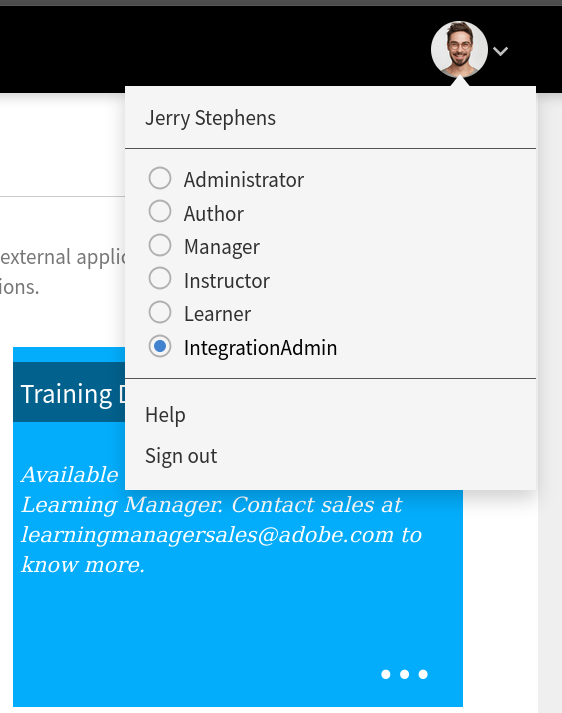
- Look at the top-right corner of your screen - see your profile picture/icon?
-
- Click it! A menu drops down showing all your roles (like different hats you can wear)
-
- Click on Integration Admin (it’s always at the bottom of the list)
-
- Don’t see it? That means you need someone to promote you to Integration Admin first!
Navigate to the Applications section
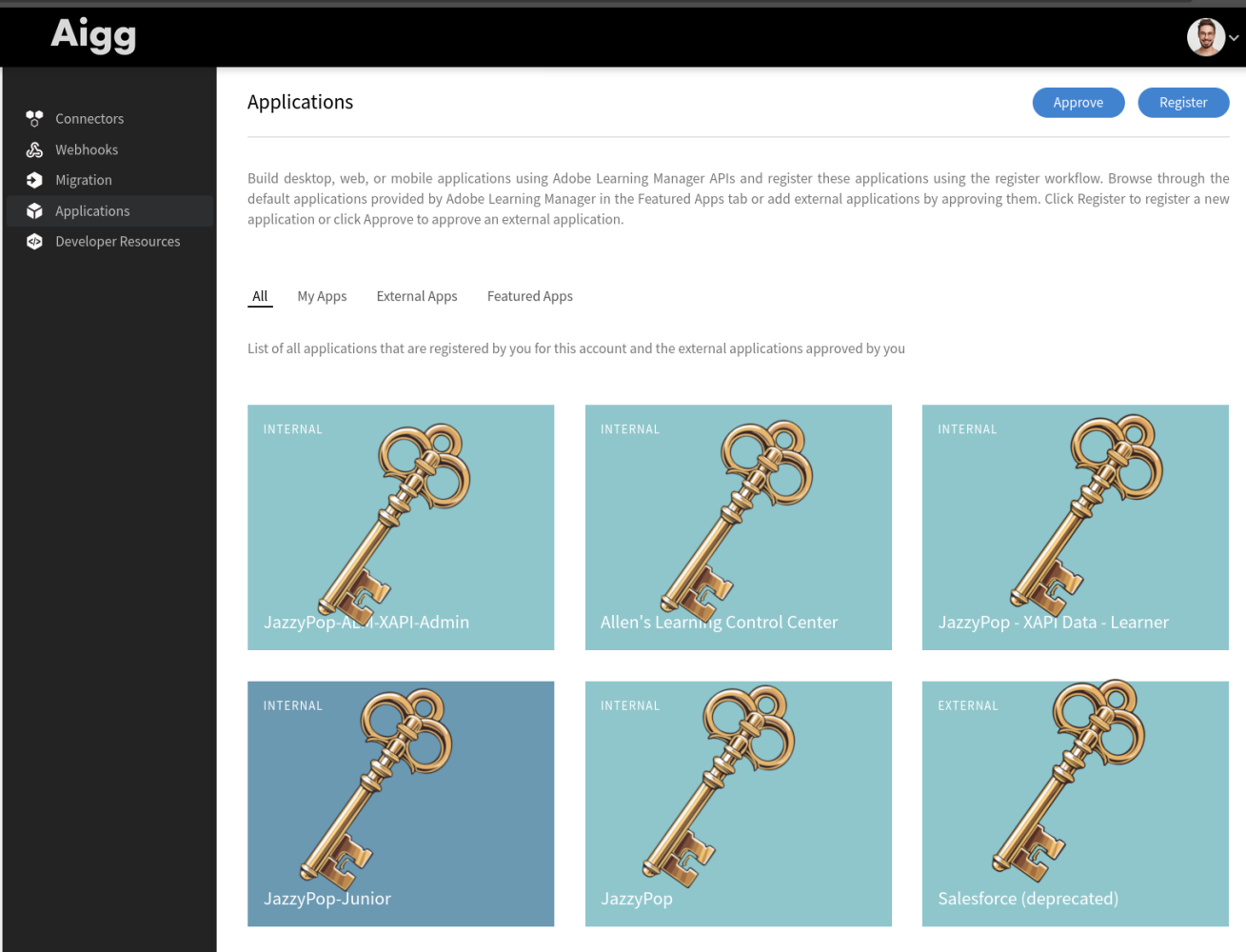
- Once you’re in Integration Admin view, you’ll see a dashboard with five big tiles:
- 🔌 Connectors - Pre-built connections to other systems (Salesforce, Workday, etc.) Think: Plug-and-play adapters for talking to other software
- Webhooks - ALM calls YOUR server when things happen (“Hey, someone just finished a course!”) Think: A doorbell that rings at your house when something happens at school
- Migration - Tools for moving massive amounts of data in/out of ALM Think: Moving trucks for when you’re relocating your entire school
- Applications - Your API keys live here! (THIS IS US! ) Think: The key-making department where you get your credentials
- Developer Resources - Documentation, Token Helper, and other tools Think: The instruction manual and tool shed
- Click on Applications to see your collection of keys
You’re now in the key vault!
- You’ll see all your existing “applications” (KEYS! They’re KEYS! 🔑)
- Don’t worry if it’s empty - everyone starts with zero keys!
- Each one represents a different set of credentials for different apps you’ve built
- Think of it like looking at all the key rings on a janitor’s belt
- No keys yet? Time to make your first one!
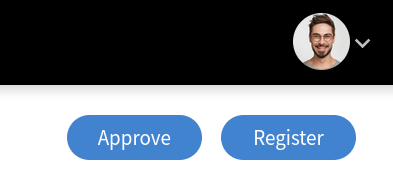
Click Register button (This means “Make me a new key ring!”)
- Pro tip: In Adobe Learning Manager, the thing you want to do next is almost ALWAYS the big blue button in the top right corner
- Yep, there it is - Register - big, blue, and waiting for you!
- Why “Register” instead of “Cut New Key”? Because tech folks gotz extra riz, man 😎
- Seriously though, you’re “registering” your future app’s identity with Adobe
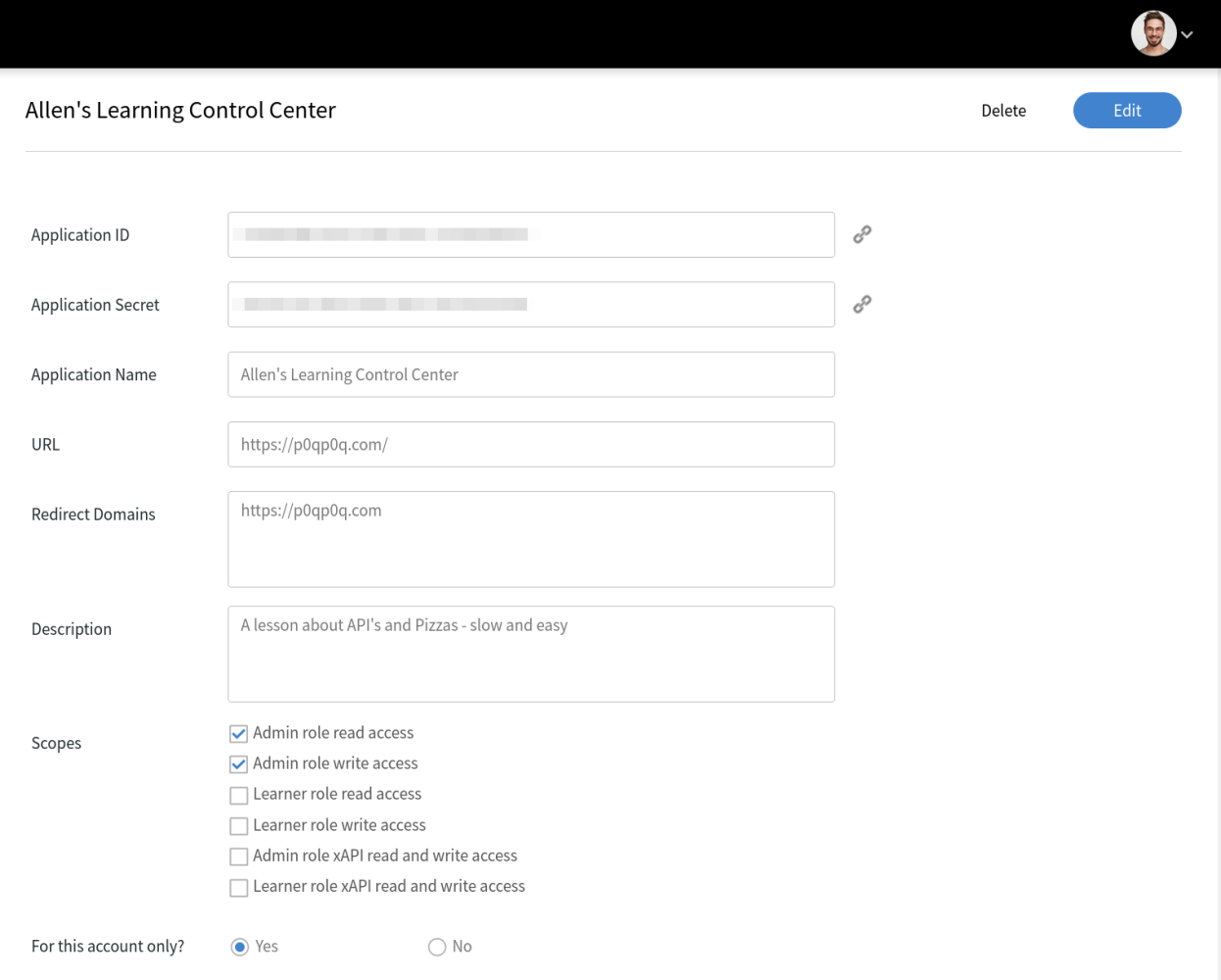
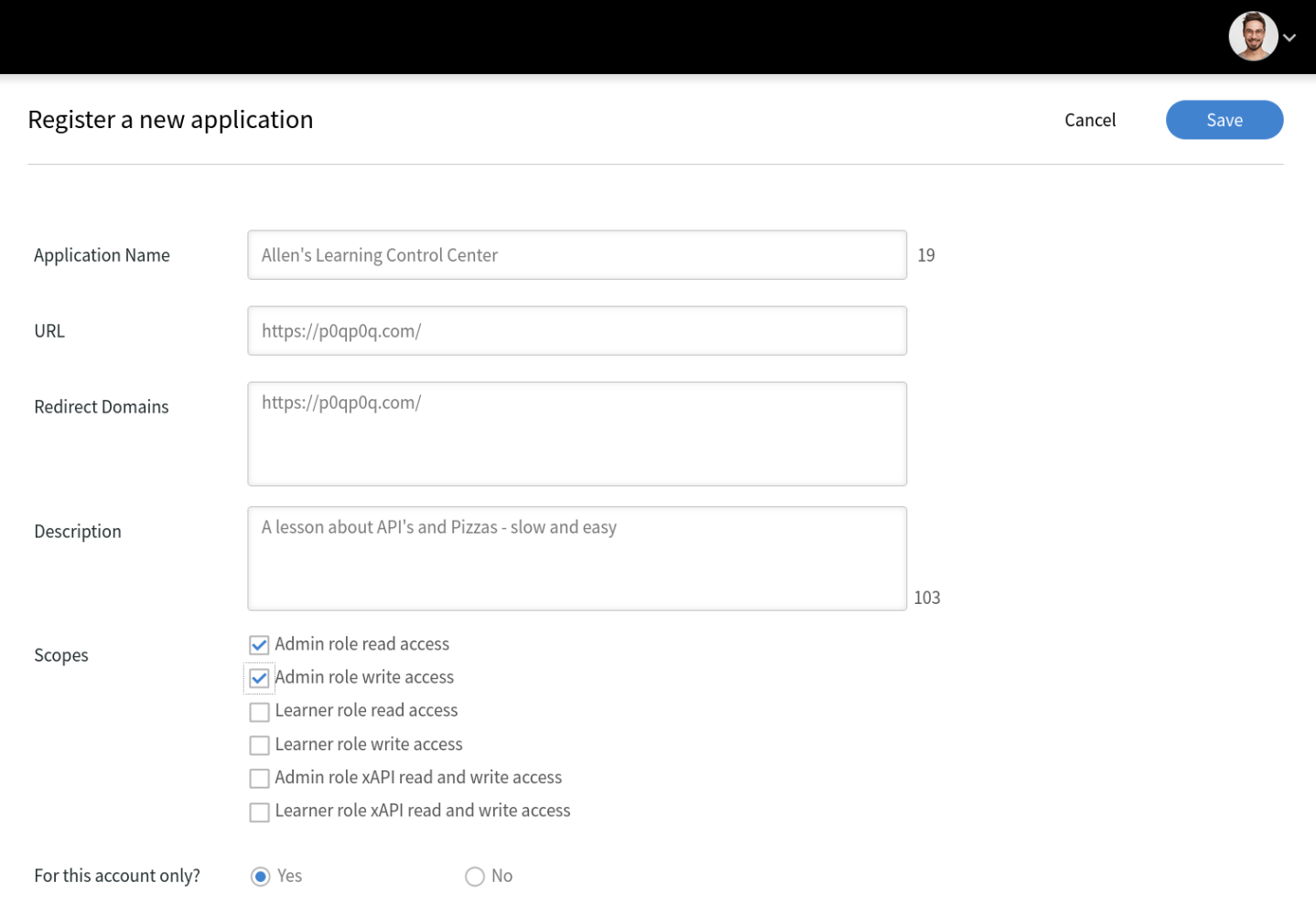
Name it something memorable like “Allen’s Learning Control Center” (This is naming your key ring, not your actual app!)
Redirect URI:
- For Token Helper to work, use:
- Why? The Token Helper needs to catch the authorization code that comes back
- If you use your own URL, it’ll redirect there with a code your site can’t use
- Think of it like ordering pizza to the wrong address - it arrives, but you’re not there to get it!
IMPORTANT: Select the scopes (principal powers) you need:
- ✅ Admin Read - Let’s you see everything (attendance, grades, courses)
- ✅ Admin Write - Let’s you change things (enroll students, create courses)
- Optional: Just select “Admin Read” if you only want to look, not touch
⚠️ Critical Rule: One app = One role! You must choose EITHER:
- Admin scopes (be the principal), OR
- Learner scopes (be a student)
- You CANNOT be both in the same app! It’s like trying to be both principal and student at the same time - the universe won’t allow it
Click Save and you get:
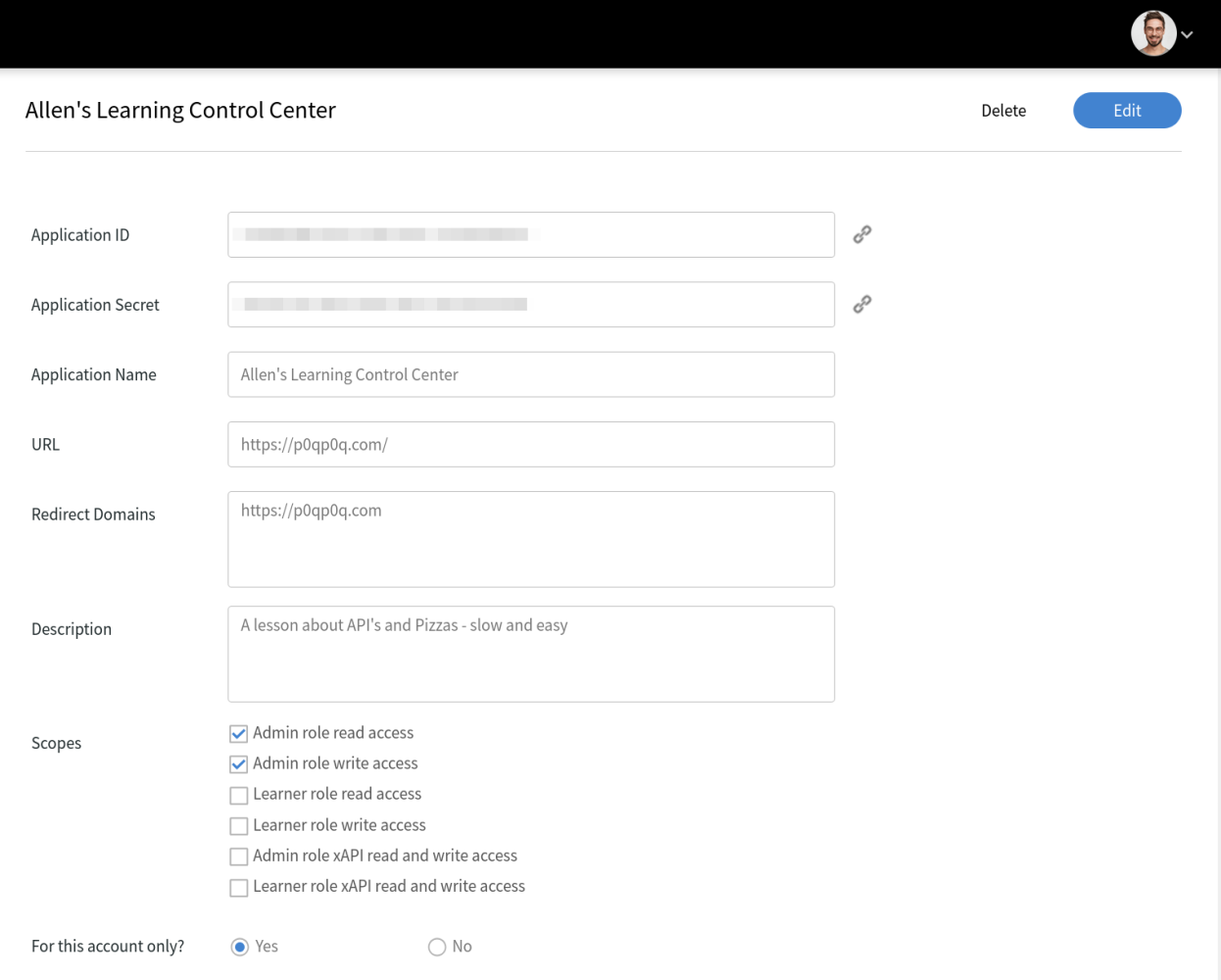
- Client ID: A long string of letters and numbers (like: xxxxxxxx-xxxx-xxxx-xxxx-xxxxxxxxxxxx)
- Client Secret: Another long string that you must keep SECRET (like: xxxxxxxx-xxxx-xxxx-xxxx-xxxxxxxxxxxx)
Guard your Client Secret like the principal guards the candy drawer. Once someone has it, they can do principal things.

Step 3: Get Your Daily Pass (Access Token)
Here’s the thing - even principals need to sign in each day. Your Client ID and Secret don’t directly open doors. They get you a temporary pass.
🎯 Getting Your Access Token
Option 1: The Token Helper (Quick Start)
Adobe provides a Token Helper right inside ALM!
- From Integration Admin view, click Developer Resources
- Find the Token Helper tool there
- It’s the fastest way to get started:
🔧 Understanding Token Helpers 4 Power Buttons
When you open Token Helper, you’ll see 4 mysterious buttons. Here’s what each one does:
- Get OAuth Code 🎫This is Step 1 of the OAuth danceClick this to get a temporary authorization code (expires in minutes!)It’s like getting a ticket stub at a concert - you trade it for the real ticket
- Get Refresh Token 🔄Trade your OAuth code for TWO tokens: access + refreshThe refresh token is your “lifetime pass” - keep it safe!This exchange must happen quickly before your code expires
- Get Access Token 🔑 ⭐ **THE GAME CHANGER!**Use your refresh token to get a fresh access token WITHOUT re-authenticatingThis is how apps can run forever - just keep refreshing!Access tokens last 7 days in ALM (not 1 hour like docs say)Your refresh token stays valid as long as you keep using it
- Get Access Token Details 🔍 ⭐ **YOUR BEST FRIEND!**Check if your access token is still validShows exactly when it expires (timestamp included!)Tells you what permissions (scopes) it hasUse this to know WHEN to refresh - before tokens expire!
✅ When to use Token Helper:
- Learning and testing the API
- Building proof-of-concepts
- Small automation scripts
- When you can manually refresh tokens periodically

This. This moment. This is the point where my Spicy brain takes control and the ambiguity tolerance fades. The disorientation starts to cloud my confidence and the terminology all starts to melt into dinosaurs, and super villains, and rampant rabbits. It strikes me that DISAMBIGUATION - and AMBIGUITY tolerance share a root word. And breathing slowly, I realize - wait … slow down. I have questions. Explain it like I’m five please.
I toss aside my pretense of understanding and again I ask - what does that mean”?” Can we round it up again? It’s good to review it. With every repetition, the circuits seem to burn a little brighter, and the fog of old knowledge melts aside making way for the new. I’m reminded of Alvin Toffler’s famous quote.
“The illiterate of the 21st century will not be those who cannot read and write, but those who cannot learn, unlearn, and relearn. ” ― Alvin Toffler
Deep breathing in place, ready for more, let’s tackle the basics. Figure out what we have learned, what we think we know so far, and what we still feel a strong sense of urgency to master. And - when I’m really flooded with distracting rabbits and dinosaurs - I probably need more tea.
🔑 Let’s Clear This Up Once and For All:
-
Your Pizza App = The CLIENT (the thing asking for data)
-
The “Application” in Adobe Learning Manager = Just a KEY RING (holds your keys)
-
Client ID = Which key ring is yours (a long ID string)
-
Client Secret = The actual key on that ring (another long ID - KEEP THIS SECRET!)
Think of it like this: Your pizza delivery app (CLIENT) needs keys to get into Adobe Learning Manager’s building. The “Application” you created in Adobe Learning Manager is just the key ring holding those keys.
It’s like a two-part key: The Client ID is the part everyone can see (which key ring is yours). The Client Secret is the part you keep hidden (the actual teeth of the key). Only when BOTH parts come together can you unlock the API door!
Let's take a moment to celebrate that victory. With that understanding I was able to do a little computer programming, and crack open some actual working examples of API calls, that confirmed my understanding. I didn't do it alone. I must thank the many Adobe engineers who patiently endured my constant questions - notably Master Viku and Yogesh, who were extraordinarily patient with me - and what must seem to them a bit like a child at the circus, pointing and asking about the nature of every insect, stuffed toy and carnival attraction.

🎉 Quick Win: Your First API Call in 30 Seconds
Before we dive into code details, let’s get you a quick win! Here’s the absolute simplest way to make your first Admin API call:
- Get a token from Token Helper (you already did this!)
- Open your terminal (Command Prompt on Windows, Terminal on Mac/Linux)
- Copy and paste this command (replace YOUR_TOKEN with your actual token):
What you’ll see: A JSON response with 3 users from your ALM instance!
🎊 Congratulations! You just made your first Admin API call! You’re officially using your principal powers!
Don’t have curl? No problem - here’s the same thing in your browser’s console:
Now let’s dive deeper and understand what just happened…
🐍 A Quick Word About Python
Before I show you code, let me explain what you’re looking at. Python is just a language computers understand - like Spanish or French, but for machines. Even if you have no desire whatsoever to consider the common computer code that might be used to trigger these connections - I think it can help to see examples, and demystify the way each of the aforementioned steps works. In the sections that follow, I’ll explain the way we make these API calls, using some actual examples, and then I’ll show you what it looks like to get the information back from Adobe Learning Manager - in some of the more common ways. First up, how do we understand these ‘confusing’ new phrases and ‘codewords’ that I am typing in Python language?
What you need to know:
- = “Hey Python, I need the tool that talks to websites”
- Think of it like getting a tool from your garage before starting a project
- is a helper that makes talking to APIs super easy
Don’t have Python? No worries! You will still learn some important things by checking it out, and I’ll show you screen shots as we go so you get the idea of what happens.
🎫 Why Bearer?In the next section, I use the term 'Bearer' and that might seem peculiar. It's like saying "I'm bearing (carrying) this token to prove who I am." Like a waiter saying "I'm bearing your order." APIs expect this exact word before your token - always write "Bearer " (with a space!) before your access token.
🤓 Note for Experienced DevelopersUnlike many APIs that accept , Adobe Learning Manager strictly requires (JSON:API specification). Using regular JSON headers will get you a 400 Bad Request. This isn't optional - it's a hard requirement!
📦 What Comes Back?The is like a package delivered to your door. It contains:**Status code**: Did it work? (200 = "Yes!", 401 = "Bad token!", 404 = "Not found!")**Data**: The actual information you asked for (in JSON format - think of it as a structured list)To peek inside: unwraps the package and shows you the data!
📝 Whats a Function?See that keyword? It means "define" - you're creating a reusable recipe! Instead of rewriting the same code every time you need a new token, you write it once in a function. Then you can just say "run the refresh recipe!" whenever needed. Think of it like saving a pizza order as "my usual" - one click instead of picking all the toppings again!
But Wait… WHERE Does This Code Go?
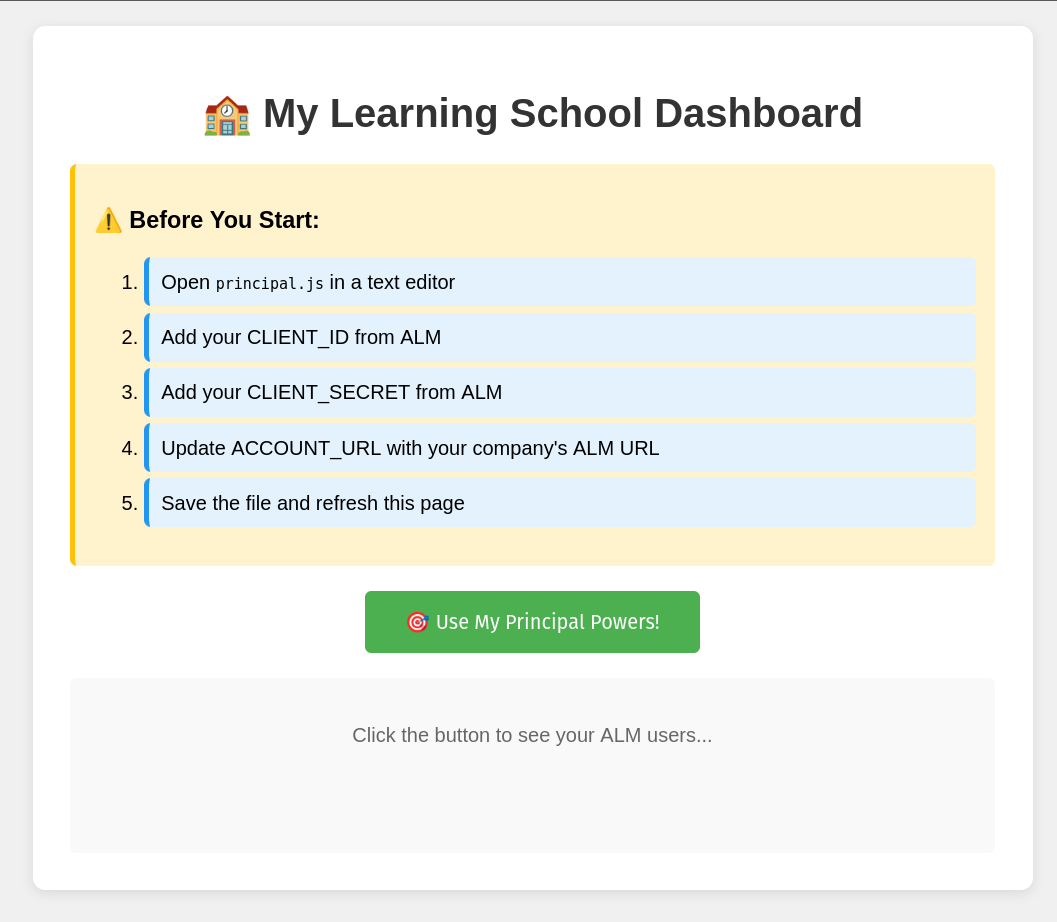
Great question! This code goes in YOUR application - whatever you’re building. Let me show you the simplest possible example:
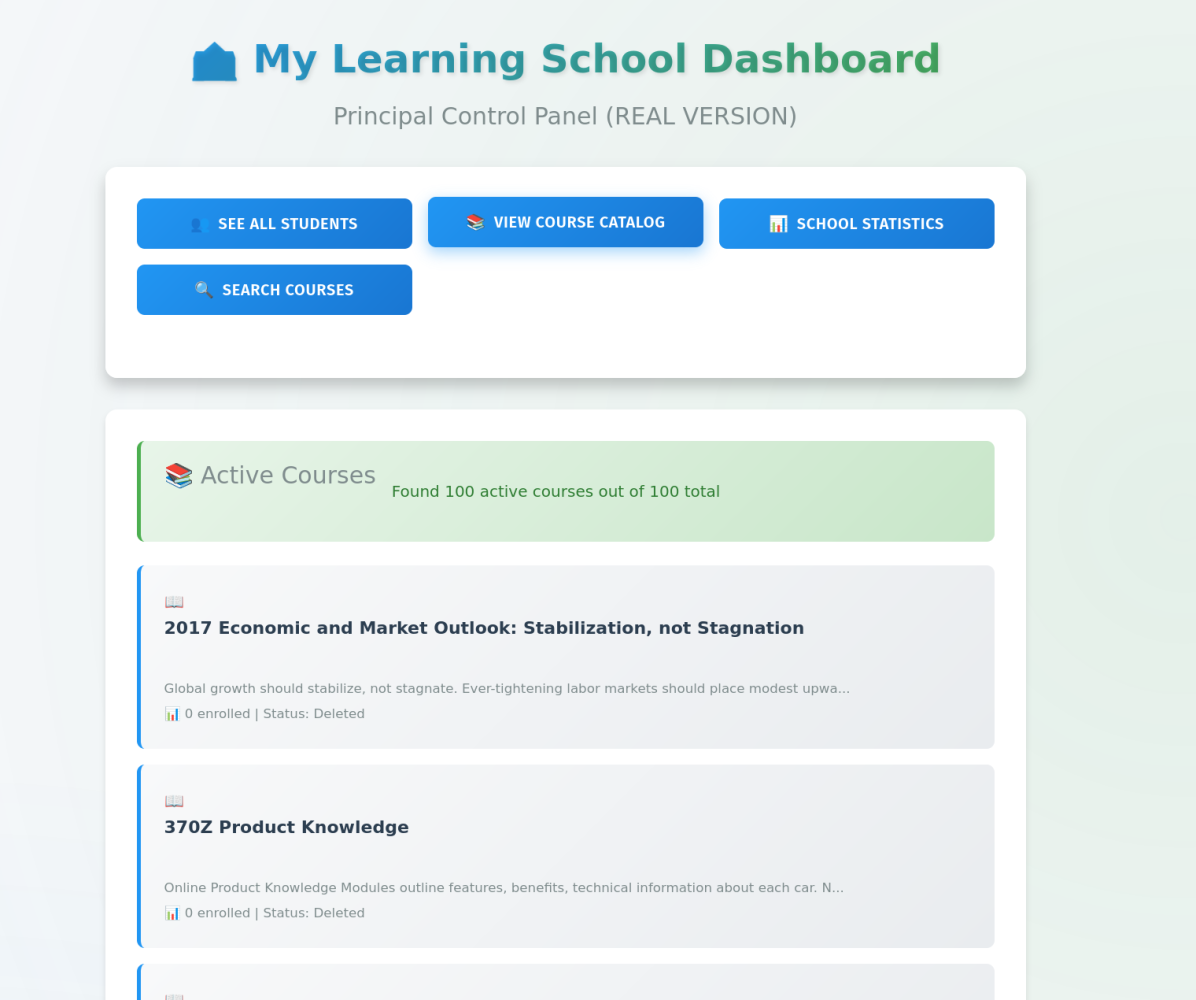
The Worlds Simplest Adobe Learning Manager Dashboard
Here’s what you’re going to build:
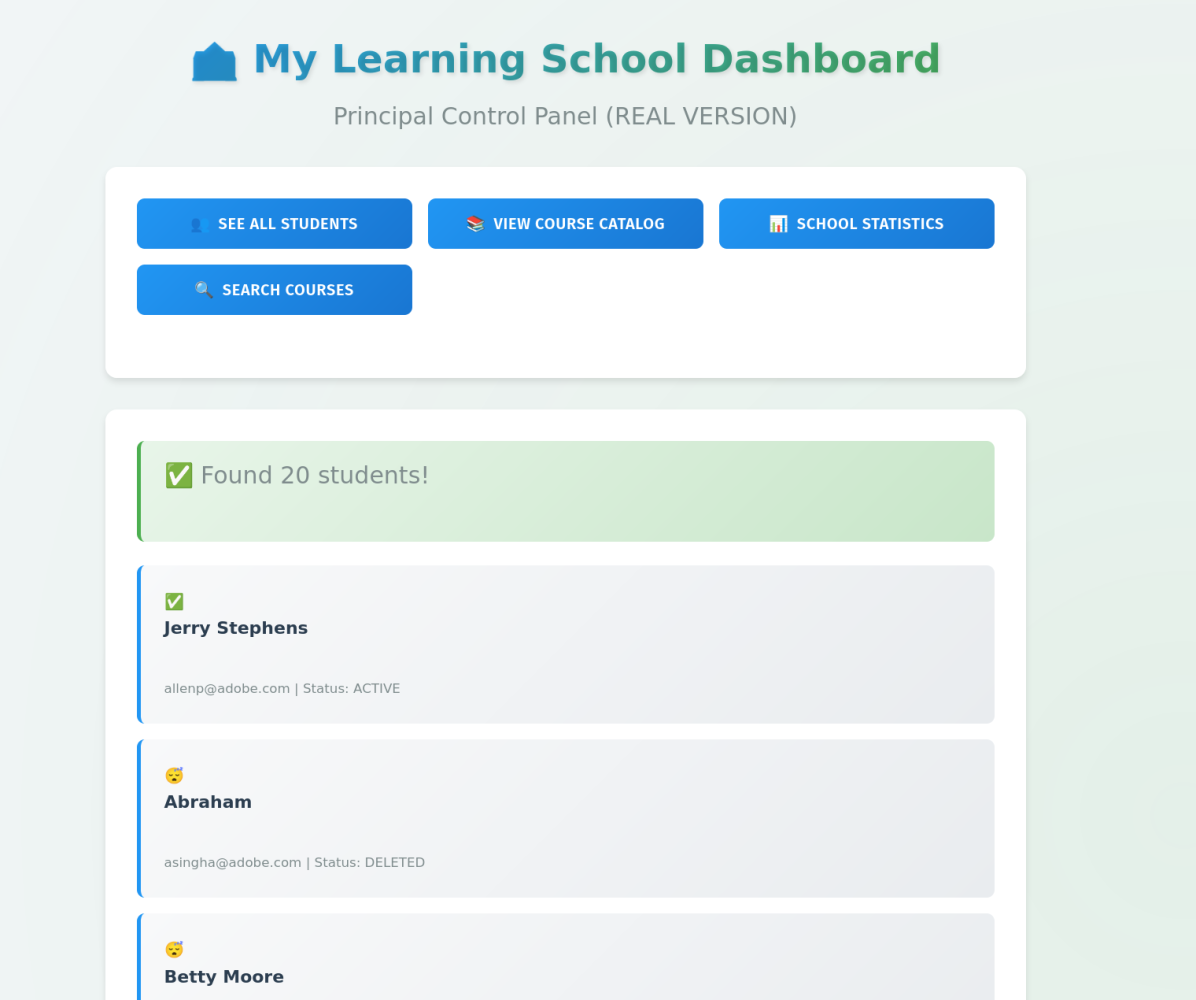
Just create a new folder on your computer called and put these two files inside:
🌐 Whats a Web Page? A web page is just a text file that tells browsers (Chrome, Firefox, Safari) what to display. It's like a Word document, but instead of .docx, it ends in .html. When you double-click it, it opens in your browser instead of Word. That's it! No server needed, no hosting required - just a file on your computer that browsers can read.
File 1: index.html (The page people see)
File 2: principal.js (Where the magic happens)
🖥️ Frontend vs Backend JavaScript This JavaScript runs in your web browser, not in a console! It's designed to work with HTML - when you click the button, this code runs and updates what you see on the page. Different from our Python script that printed to a black terminal window. Same API calls, different stage!
How to Run Your Dashboard
- Create the folder and files exactly as shown above
- Add your credentials to (from Step 2!)
- **Double-click ** to open it in your browser
- Click the button and watch the magic happen!

⚠️ Security Warning: This example puts credentials in JavaScript where anyone can see them! This is just for learning. In real life, your credentials should live on a backend server, not in the browser!
Think of it like this: You wouldnt tape your house key to your front door, right? Same with API credentials!
🚨 Important Discovery: If you try to run this HTML file directly, you may get a “CORS error” - the browser blocks the request! This is Adobe Learning Manager protecting itself from random websites. It’s like the pizza place saying “I only accept orders from approved phone numbers, not random callers!”
This is actually why real applications need a backend server - to make the API calls on your behalf.
The Safe Way (For Real Apps)
In production, your credentials stay on YOUR server, never in the browser!
Your Principal Powers: What Can Admin APIs Do?
Whew! Take a breath. You just survived the technical gauntlet - tokens, credentials, OAuth flows, and enough acronyms to make alphabet soup.
But here’s the fun part: Now you get to use those powers!
Remember when you were a kid and wondered what principals actually DO all day? Besides drinking coffee and looking stern? Turns out, they’re basically wizards managing an entire learning universe. And now, with your shiny new API keys, so are you.
The Complete Principals Key Ring
Let me tell you what happened the first time I realized what these Admin APIs could actually do. I was sitting there, fresh token in hand, feeling like I’d just been handed the keys to Hogwarts.
“Surely,” I thought, “it can’t do EVERYTHING.”
It can do everything.
With Admin API access, you become the principal who can:
See Everything (READ powers): 👥 List all students (users) in your school 📚 See all the classes (courses) available 📊 Check everyone’s grades (completion status) 🎯 View all the clubs (learning paths) 📈 Generate report cards (analytics)
Change Everything (WRITE powers): ➕ Enroll students in classes 🎓 Create new courses 👤 Add new students to the school 📝 Update student records 🏆 Award badges and certificates
(And about 47 other things I’m leaving out because this article is already longer than a CVS receipt)

Real Principal Tasks (With Real Code!)
Let’s do some actual principal work. Here are the three most common things principals need to do:
Task 1: Who’s in My School? (List All Users)
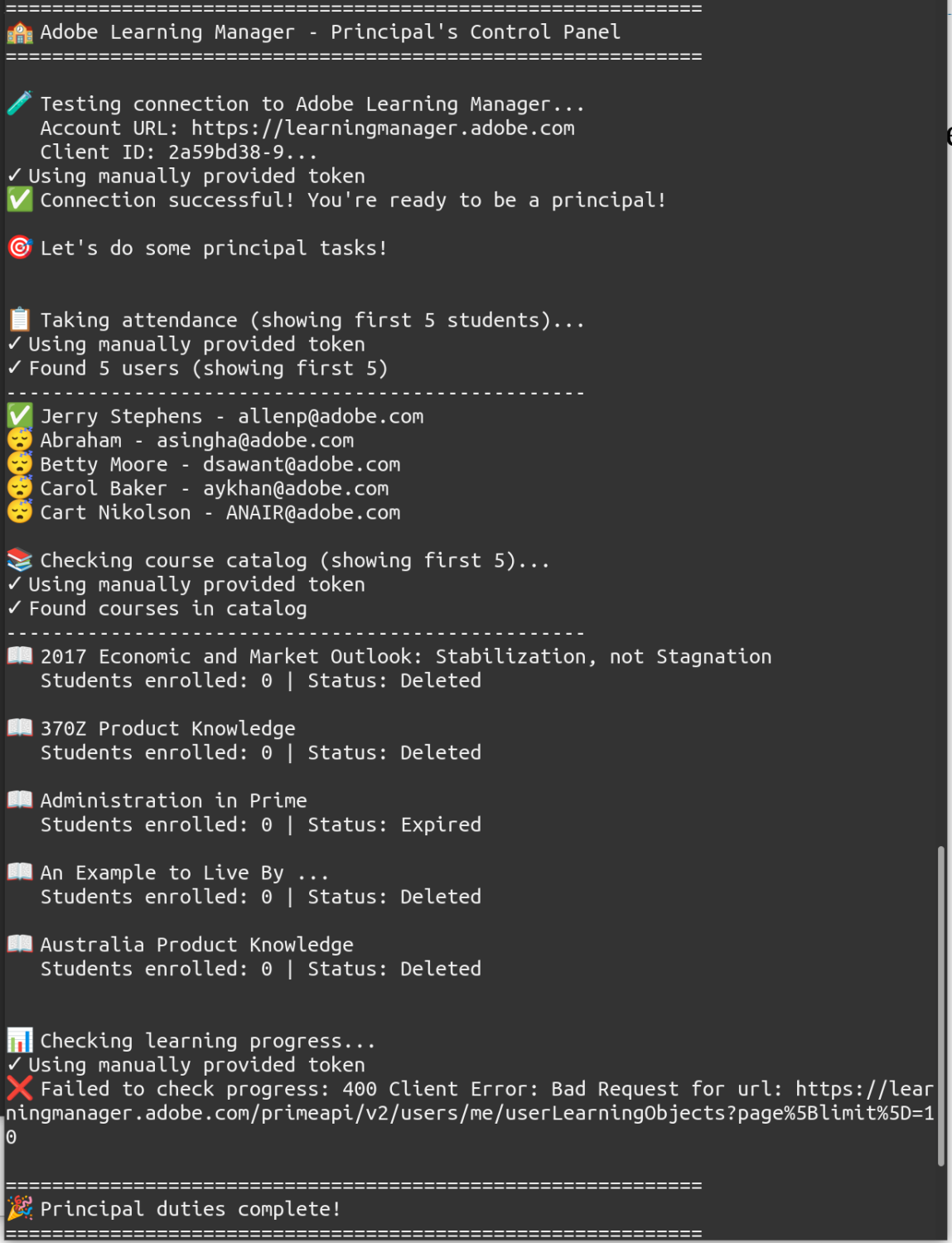
Task 2: What Classes Do We Offer? (List Courses)
The Token Refresh Secret (How to Keep Your Apps Running)
Remember when I said tokens expire and that’s annoying? Here’s what I discovered while writing this article:
The Refresh Token Loop
As long as you refresh regularly, your app can run for years without manual intervention. The key? Use it or lose it - refresh tokens expire after 15 days of NOT being used, but stay alive forever if you keep using them!
Common Principal Mistakes (And How to Avoid Them)
Mistake 1: Using Your Principal Badge After Hours
Mistake 2: Trying to Enroll Ghosts
Mistake 3: The Infinite Scroll of Doom
Mistake 4: The Trailing Slash of Doom
This one cost me an hour of my life. OAuth does EXACT string matching on redirect URIs. One extra and you’ll get “Invalid redirect URI” errors that make you question your sanity. Always check for trailing slashes!
Real Working Code - Copy, Paste, and Go!

I promised real code, so here it is! I’ve created complete working examples in both Python and JavaScript. These aren’t just snippets - they’re full programs you can run RIGHT NOW.
🐍 Python Version
Download: working-admin-api-code.py
🟨 JavaScript Dashboard (Browser Version)
Download: simple-dashboard.zip
💻 Node.js Version
Download: working-admin-api-code.js
Both versions do EXACTLY the same things:
- ✅ Handle authentication automatically (with token caching!)
- ✅ List your users with fun emojis
- ✅ Show your course catalog
- ✅ Check learning progress with progress bars
- ✅ Include helpful error messages
Quick Start (Python)
Quick Start (JavaScript)
The best part? The code includes tons of comments explaining everything. It’s like having me sitting next to you, explaining each line!
Your Principal Homework
Before our next lesson, try these principal tasks:
- Get Your Badge
- Take Attendance
- Check the Curriculum
- Make One Change
The Difference Between Principal and Student
Next time, we’ll meet the Student Council President (Learner APIs). Here’s a preview of the difference:
Principal (Admin API):
- Can see everyone’s grades
- Can enroll anyone in anything
- Can create new courses
- Can generate school-wide reports
Student (Learner API):
- Can see their own grades
- Can enroll themselves (if allowed)
- Can see available courses
- Can track their own progress
Admin API is like being the principal. Learner API is like being a really organized student with a good planner.
What We Learned Today
You just learned how to:
- Become a principal (get Admin access)
- Get your daily badge (access tokens)
- Use your principal powers (make API calls)
- Avoid common principal mistakes
And most importantly: You’re not scary anymore, Admin APIs!
Next time: We’ll explore Learner APIs and see what students can do with their more limited (but still useful!) powers.
About the Author
Dr. Allen Partridge is a learning addict with a rebellious spirit and a passion for evidence-based reasoning. With a PhD that somehow managed to integrate art, music, theater, philosophy, and computer science (because why pick just one?), he’s spent his career building bridges between domains that usually don’t talk to each other.
As Adobe’s Learning Evangelist, Allen has helped global enterprises train millions of employees while reducing admin overhead – but he still gets stumped by API documentation like the rest of us. When he’s not translating complex tech into human-speak or debugging something that should “just work,” you’ll find him with a melting iced green tea, wondering why technology insists on being harder than it needs to be.
His approach? If you can’t explain it to a five-year-old, you probably don’t understand it well enough yourself. And sometimes, the best way forward is to admit you’re confused and start over with the basics.
Find more of Allen’s adventures in making technology accessible, one metaphor at a time, on his LinkedIn articles page.
Because the best teachers aren’t the ones who never struggled – they’re the ones who remember what it felt like and can guide you through it.