Interactive Brushes
Algorithms scatter. Brushes refine. Paint trees where you want them. Erase where you don't.
Brush Modes
Landscaper provides four interaction modes, cycled with the Spacebar. Each mode changes how mouse input is interpreted and displays a color-coded cursor ring.
| Mode | Cursor | Action | Use Case |
|---|---|---|---|
| Orbit | None | Click+drag rotates camera | Navigation and inspection |
| Paint | Green ring | Click+drag places objects | Adding trees to sparse areas |
| Erase | Red ring | Click+drag removes objects | Clearing paths and clearings |
| Select | Blue cursor | Click to pick objects | Fine-tuning individual placements |
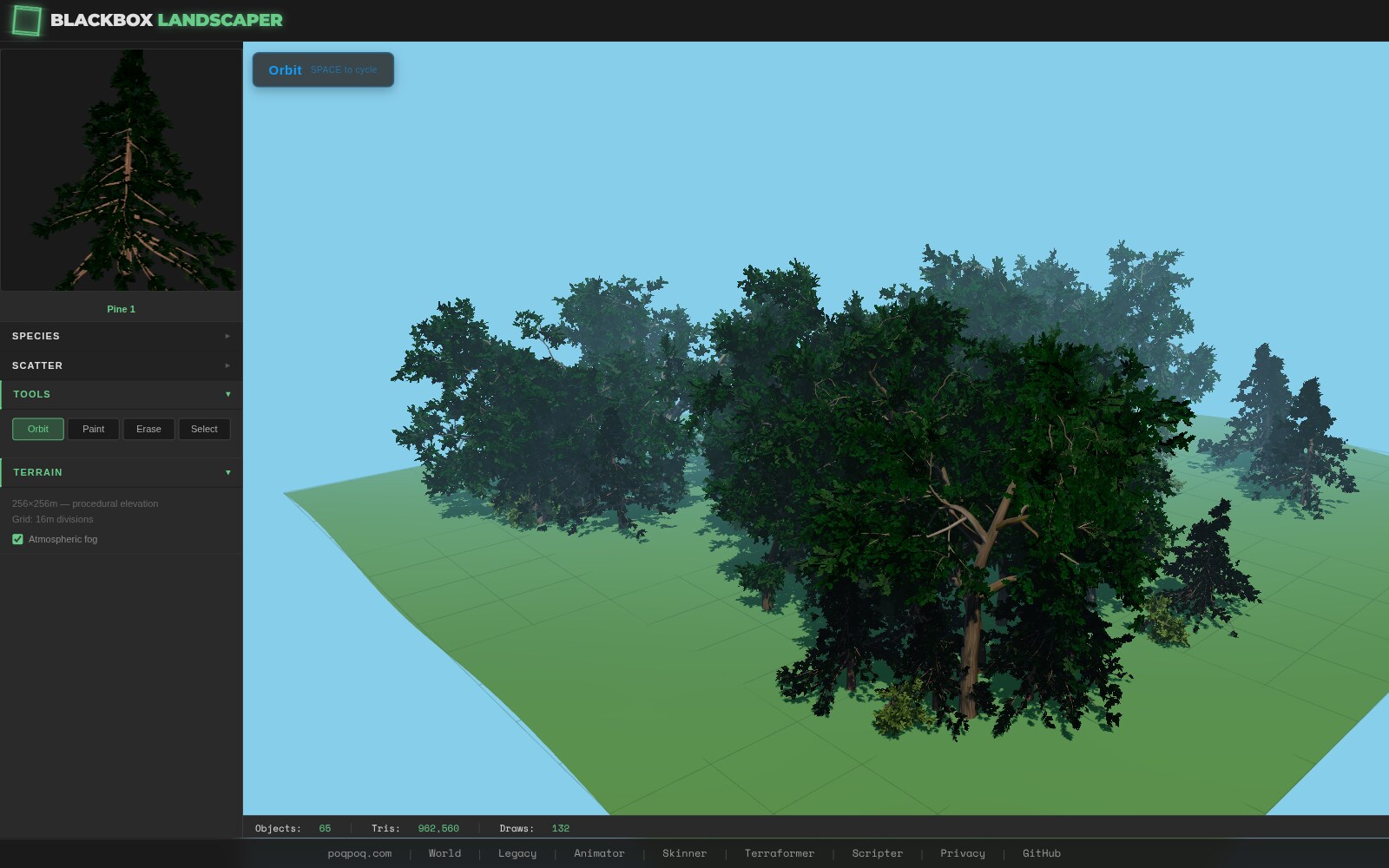
Paint Mode
Click and drag across the terrain to place objects within the brush radius. Each drag tick attempts to place 1–3 instances, depending on brush size. Placement is throttled — you must move at least 40% of the brush radius before new objects appear. This prevents accidental clustering.
Each painted object is a fully procedural instance, generated fresh with a random seed. The active species determines what gets placed. Spacing checks prevent objects from overlapping.
Erase Mode
Click and drag to remove all objects within the brush radius. Uses squared-distance checks for performance — no raycasting needed. Geometry and materials are disposed immediately on removal.
Select Mode
Click on an object to select it. The selected object is highlighted with a green emissive glow. From here you can:
- Shift+Click — Add or remove objects from the selection
- Delete key — Remove selected objects
- G key — Activate translate gizmo (grab and move)
- R key — Activate rotate gizmo
- S key — Activate scale gizmo
The transform gizmo uses Three.js TransformControls for precise manipulation. Move a tree to the perfect spot. Rotate it to face a clearing. Scale it up to make a landmark.
Keyboard Shortcuts
| Key | Action | Available In |
|---|---|---|
| Space | Cycle brush mode (Orbit → Paint → Erase → Select) | All modes |
| Delete | Delete selected objects | Select mode |
| G | Translate gizmo (grab) | Select mode |
| R | Rotate gizmo | Select mode |
| S | Scale gizmo | Select mode |
Workflow
- Scatter first — Use Poisson disk or clustered to populate the bulk of the terrain
- Switch to Paint — Fill in sparse areas, add accent trees along ridgelines
- Switch to Erase — Clear paths, roads, building sites, clearings
- Switch to Select — Fine-tune individual trees with translate/rotate/scale
- Export — Save the final manifest with all hand-edited placements preserved
Brush-painted objects are fully included in the export manifest. Whether placed by algorithm or by hand, every instance is saved. This means you can scatter 200 trees, erase 50, paint 30 in better spots, and export the result — all 180 trees are captured.