Media on Prims
Turn any surface into a screen. Play video, stream audio, embed a YouTube video, or display a web page -- all on the face of an object you built.
Media on prims is what turns a static building into a living space. Hang a TV on a wall and play a video. Place a jukebox that streams music. Build an information kiosk that shows a web page. Create a cinema where visitors watch together.
Media works per-face, just like textures. You can have a video playing on the front face of a box while the other five faces show brick, wood, or any other material. One object, multiple purposes.
What You Can Play
Media on prims supports several types of content. The system auto-detects the type when you paste a URL, so you do not need to configure it manually.
Video
Play video files directly on a surface. MP4 and WebM formats are supported, as well as HLS live streams. The video renders as a texture on the prim face -- it looks like a real screen in the world, complete with self-illumination so it glows like a monitor even in dark environments.
YouTube
Paste any YouTube URL -- the standard watch link, a short link, or an embed link all work. The system detects YouTube automatically and handles it. This is the easiest way to set up a TV or presentation screen in your world.
Audio
Stream audio from MP3, OGG, or WAV files. Audio-only media displays a poster image on the face (or a default visualizer) while the sound plays. Audio is spatial -- it gets quieter as you walk away and louder as you approach, just like a real speaker in a room.
Web Pages
Embed a web page on any face. The page is captured and displayed as an image on the surface. Use this for information displays, dashboards, community boards, or live data feeds.
Image Slideshows
Cycle through a set of images on a timer. Build a photo gallery, a rotating advertisement board, or a presentation screen. Each image displays for a configurable duration before transitioning to the next.
Adding Media to an Object
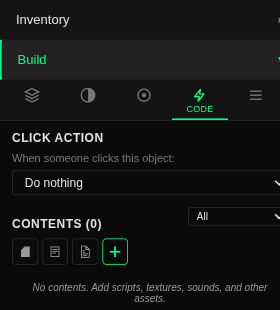
Media is configured in the Code tab of the Build Panel, since media is behavior -- it plays, pauses, and responds to interaction.
- Select an object you have already placed in the world.
- Open the Code tab in the Build Panel.
- Choose which face should display the media using the face dropdown. (This uses the same face system as per-face texturing.)
- Paste a URL into the media URL field. The system auto-detects whether it is a video, YouTube link, audio file, or web page.
- Configure playback -- set looping, volume, and whether the media should autoplay or wait for a click.
- Done. The media is saved automatically. Other visitors to your world will see the media prim and can interact with it.
Click-to-Play vs. Autoplay
By default, media waits for a visitor to click before playing. This is click-to-play mode, and it is the recommended default for most uses. It respects visitors' bandwidth, attention, and speakers.
You can enable autoplay if you want media to start as soon as someone enters the area. Autoplay media starts at reduced volume to avoid startling visitors. Keep in mind that web browsers have their own autoplay policies -- if a visitor has not interacted with the page yet, the browser may require the media to start muted, showing a "click to unmute" prompt.
Playback Controls
When a visitor clicks a media prim, playback controls appear as an overlay on the surface. The controls include play, pause, stop, a progress bar, and a volume slider.
You can choose from three control styles when setting up media:
Spatial Audio
All media audio is spatial -- it behaves like real sound in a 3D space. The volume changes based on your distance from the media prim.
This means you can have a nightclub with music in one area and a quiet garden next door without the audio bleeding between them. The world handles it naturally.
Media and Faces
Media works with the same per-face system described in the Per-Face Texturing guide. Each face of an object can independently have a static texture, a color, or media. You can have a box that is brick on five sides and a video screen on the front.
When media is active on a face, it replaces that face's texture. The underlying color is still there -- it shows through transparent areas of the video and appears when media is stopped.
Media faces glow like real screens. Even in a dark room, a media face illuminates itself so the video or image is always visible.
Scripted Media
For advanced creators, media can be controlled entirely through scripts. This opens up possibilities like custom TV products, interactive jukeboxes, playlist systems, and media-driven art installations.
A script attached to an object can start, stop, pause, and seek media. It can change the URL, adjust volume, and respond to events like playback ending. This lets you build a jukebox that automatically advances to the next track, or a TV remote control that changes what is playing.
Scripts can only control media on the object they belong to. To build a separate remote control, you use the messaging system to send commands between objects.
What Visitors Experience
When someone visits a world you have built, media prims work automatically. Visitors do not need to configure anything -- they just see the media surface and interact with it.
The system is smart about performance. Media that is far from a visitor is automatically paused to save resources. When they walk closer, playback resumes seamlessly. If a world has many media prims, the system keeps the closest ones active and pauses distant ones, so the experience stays smooth even in media-rich environments.
Poster Images
When media is in click-to-play mode, the face displays a poster image until the visitor clicks. You can set a custom poster image -- perhaps a "Click to Watch" graphic, a movie poster, or an album cover -- that gives visitors a clear visual cue about what the media contains.
If you do not set a poster, the system shows the first frame of the video or a default media icon.
Media Tips
- Use click-to-play for most media. Visitors prefer to choose when something starts playing.
- Set a poster image for a polished look. A blank face with no poster is less inviting than one with a clear "play me" visual.
- For background ambiance, use autoplay with audio set to low volume. Birdsong, water sounds, or soft music can bring a space to life without being intrusive.
- Media faces glow like screens by default. In a bright outdoor scene you may not notice, but in a dark room the effect is striking.
- YouTube links are the easiest way to set up a TV. Just paste the URL -- the system handles the rest.
- Keep media URLs pointing to reliable sources. If a video URL goes offline, the face will show the poster image instead of breaking.
- Use the None controls style with scripts to build custom media products like jukeboxes and kiosks.
- Spatial audio means you do not need to worry about sound from a TV in one building disturbing visitors in the building next door.